# Subscription Overview
To view the subscriptions of connected merchants, navigate to **Subscriptions** in the platform administration of your Payrexx account. The following functions are available there:
## Finding Subscriptions
At the top of the window, there is a field that allows you to search for specific subscriptions. You can search by the merchant’s instance name, invoice number, or reference:
Finding subscriptions using the search field
In addition, [search results](#subscription-list) can be narrowed down using the filter function. The following filters are available:
Narrowing search results using the filter function
1. **Status**: Only subscriptions with a specific status are displayed. You can filter by active, inactive, deleted, canceled, or refunded subscriptions.
2. **Product**: Only subscriptions for a specific [product](https://docs.payrexx.com/platform/english/backoffice/admin/products) will be displayed.
3. **Payment status**: Only subscriptions with a specific payment status (e.g., paid, unpaid) are displayed.
4. **Country**: Only subscriptions from merchants in the selected country are displayed.
5. **Date range**: Only subscriptions created between the "From" and "To" dates are displayed.
6. **Hide free licenses**: Only paid subscriptions will be displayed.
## Downloading Subscriptions
The list of subscriptions can be downloaded as a PDF or CSV file. To do this, click the "Download" button at the top of the window and select the desired option:
* Latest reminder as PDF
* Latest reminder as PDF (ping compatible)
* Invoices as PDF
* CSV file with all subscriptions
## Subscription List
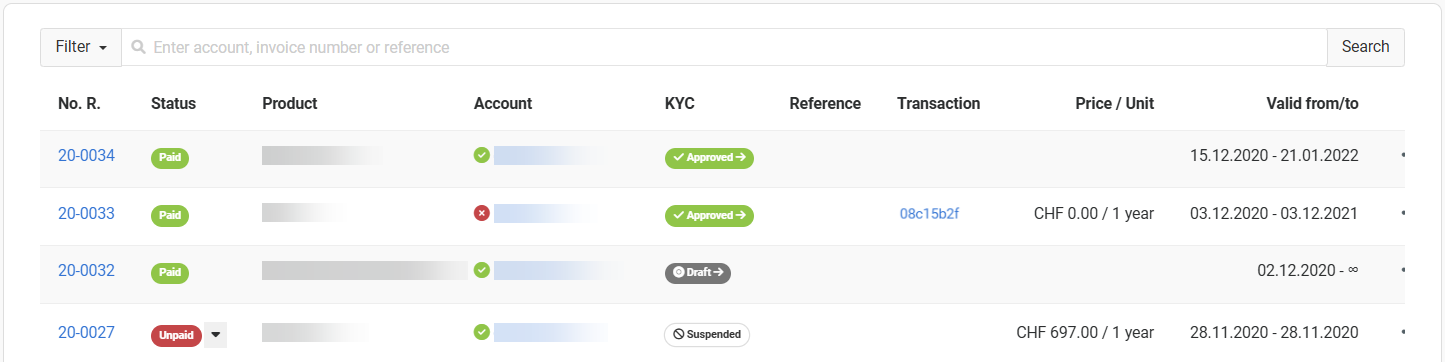
In the main area of the window, the list of all previously created subscriptions is displayed:
List of all merchants’ subscriptions on the platform
### Column descriptions
#### No. R
The invoice number of the invoice associated with this subscription. By clicking the invoice number, you can view the current invoice as well as all previously issued invoices.
#### Status
The values in this column indicate the payment status of the subscription. The following statuses are distinguished:
* **Paid:** The invoice for the subscription has been paid.
* **Canceled:** The payment for the subscription was canceled.
* **Unpaid:** The invoice for the subscription has not been paid.
* **Loss:** The invoice for the subscription was not paid, the dunning process was unsuccessful, and the amount has been written off as a bad debt.
#### Product
This column shows which [product (plan)](https://docs.payrexx.com/platform/english/backoffice/admin/products) the subscription relates to. If "Will be renewed" appears below the product name, it means the subscription will automatically renew at the end of its term.
#### Account
Displays the instance name of the merchant.
#### KYC
This column shows the [KYC (Know Your Customer)](https://docs.payrexx.com/platform/english/backoffice/merchants/know-your-customer-kyc) status of the merchant:
* **Approved**: The account has been successfully verified.
* **Draft**: The account verification has not yet been submitted.
* **In Remediation**: Corrections need to be made for the account verification.
* **Rejected**: The account verification has been rejected.
* **Suspended**: The account has been suspended.
#### Reference
If the subscription was completed using a [reference code](https://docs.payrexx.com/platform/english/backoffice/references), it will be displayed here.
#### Transaction
This column shows, if available, the link to the transaction used to pay for the subscription.
#### Price / Unit
This column displays the cost and duration of the subscription.
#### Valid From / To
This column shows the subscription's validity period—either as a specific date range (e.g., 15.12.2020 - 21.01.2022) or with an unlimited term (e.g., 02.12.2020 - ∞).
### Functions in the overview list
When you hover over a row, up to four functions appear on the right side:
Functions in the subscription overview list
1. **View history**: Display the subscription history.
2. **Open payment sage**: Access the merchant’s payment page.
3. **Adminlogin**: Log in as an administrator to the merchant's admin interface.
4. **Delete:** Delete the selected subscription.