> For the complete documentation index, see [llms.txt](https://docs.payrexx.com/platform/llms.txt). Markdown versions of documentation pages are available by appending `.md` to page URLs; this page is available as [Markdown](https://docs.payrexx.com/platform/setup-und-konfiguration/set-up-stripe-connect-application.md).
# Einrichtung von Stripe
In diesem Artikel erfährst Du, wie Du Stripe als externen Zahlungsanbieter in Deiner Plattform einrichten kannst.
{% hint style="info" %}
Stelle bitte sicher, dass Dein Konto bei Stripe vollständig verifiziert ist, bevor Du mit der Einrichtung in Payrexx beginnst.
{% endhint %}
## Anleitung
Die folgende Anleitung beschreibt, wie die Einrichtung von Stripe in Payrexx vorgenommen werden muss.
### Verbinden der Applikation
1. Logge Dich ins [Dashboard](https://dashboard.stripe.com) Deines Kontos bei Stripe ein.
2. Navigiere zu "Settings > Connect > Settings"\

3. Configure the Branding to match your CI/CD.
4. In the section "Integration"\
\- Copy the "Live mode client ID" \[1] and provide it to Payrexx\
\- In the section "Redirects", click "Add URI" \[2] and enter the URI [**https://dispatcher**](https://dispatcher/)**.**YOUR-PLATFORM-DOMAIN/stripe/ \[3] where YOUR-PLATFORM-DOMAIN is the URL of your platform account at Payrexx.\
\- Make sure that OAuth flows are activated\

5. Click on "View test data" \[1] and provide the "Test mode client ID" \[2] to Payrexx.\

6. Make sure to activate OAuth flow in Test mode and to add the URI in the "Redirects" section as well.
### API Keys
API keys are necessary in order for the application to communicate with Stripe on behalf of your Stripe account.
1. Navigate to "Developers > API keys" \[1] and\
\- Copy the "Publishable key" \[2] and provide it to Payrexx\
\- Click on "Reveal live key token" \[3] and copy the revealed token and provide it to Payrexx (if there is no secret key, generate one by clicking the button "Create secret key".\

2. Click on "View test data" \[1] and provide the "Publishable key" \[2] to Payrexx.\
Click on "Reveal test key token" \[3] and provide it to Payrexx.\

### Webhooks
Webhooks are necessary for payments to become completed through asynchronous notifications.
1. Navigate to "Developers > Webhooks" \[1] and click on "Add endpoint" \[2]
2. Configure the new webhook endpoint\
\- Enter the field "Endpoint URL" \[1] with [**https://dispatcher**](https://dispatcher/)**.**YOUR-PLATFORM-DOMAIN/stripe/webhook.php where YOUR-PLATFORM-DOMAIN is the URL of your platform account at Payrexx.\
\- Add "Events to send" \[2] by searching them in the dropdown "Select events".\
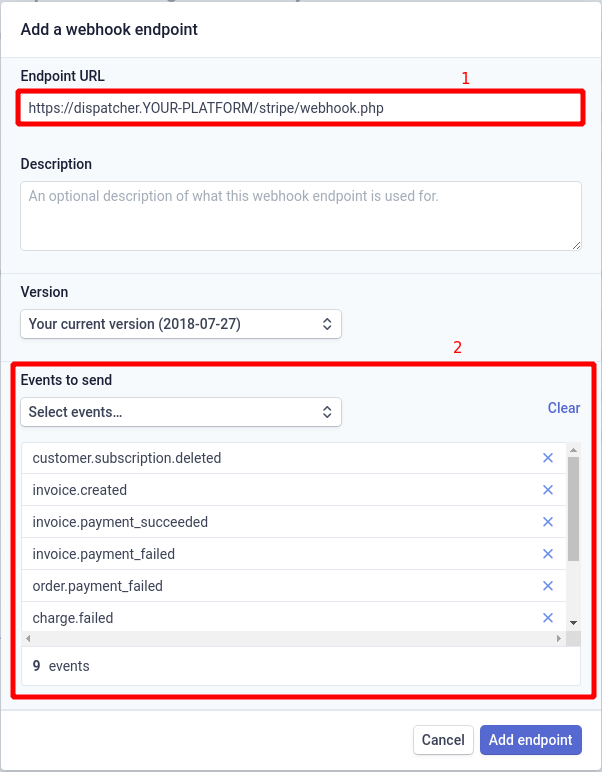\
The following events need to be added:\
charge.refund.updated\
charge.succeeded\
charge.refunded\
charge.failed\
order.payment\_failed\
invoice.payment\_failed\
invoice.payment\_succeeded\
invoice.created\
customer.subscription.deleted\
3. Click on the newly created webhook and click on "Click to reveal" \[1] in order to reveal the signing secret. Provide this signing secret to Payrexx.\
\
## Provide to Payrexx
Payrexx needs some keys to connect your platform with Stripe correctly.
Please provide the following information in order to fulfill the connection. This data can be sent to
* Live mode client ID
* Test mode client ID
* Live API Publishable Key
* Live API Secret Key
* Test API Publishable Key
* Test API Secret Key
* Webhook Signing Secret
---
# Agent Instructions
This documentation is published with GitBook. GitBook is the documentation platform designed so that both humans and AI agents can read, navigate, and reason over technical content effectively. Learn more at gitbook.com.
## Querying This Documentation
If you need additional information that is not directly available in this page, you can query the documentation dynamically by asking a question.
Perform an HTTP GET request on the current page URL with the `ask` query parameter, and the optional `goal` query parameter:
```
GET https://docs.payrexx.com/platform/setup-und-konfiguration/set-up-stripe-connect-application.md?ask=&goal=
```
`ask` is the immediate question: it should be specific, self-contained, and written in natural language.
`goal` is optional and describes the broader end goal you are ultimately trying to accomplish on behalf of the user. GitBook uses it to tailor the answer towards what is most useful for that goal.
The response will contain a direct answer to the question and relevant excerpts and sources from the documentation.
Use this mechanism when the answer is not explicitly present in the current page, you need clarification or additional context, or you want to retrieve related documentation sections.